
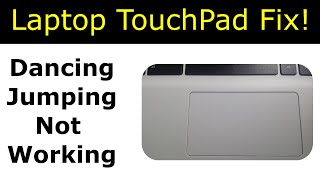
Laptop Touchpad Repair and Replacement in Nairobi | Functions, Common Problems and Solutions
A laptop touchpad is an essential component that allows you to control your computer without connecting an external mouse. Whether you are browsing the internet, preparing documents, attending online classes, or working with business applications, a properly functioning touchpad makes everyday computing easier.
When the touchpad stops responding, moves the cursor erratically, fails to register clicks, or no longer supports gestures, using your laptop can become frustrating.
At Luztech Computer Solutions, we assist customers with laptop touchpad diagnosis, troubleshooting, repair, and replacement for supported laptop models. We handle enquiries for popular brands, including HP, Dell, Lenovo, Acer, ASUS, Toshiba, Samsung, Apple MacBook Air, Apple MacBook Pro, and selected Microsoft Surface devices.
If your laptop touchpad is faulty, we can help identify the possible cause and determine whether software troubleshooting, connector repair, or touchpad replacement is appropriate.
Contact Luztech Computer Solutions on 0702 981 367 for laptop touchpad repair and replacement enquiries in Nairobi.
Browse our Laptop Mouse, Touchpad and Buttons Category.
What Is a Laptop Touchpad?
A laptop touchpad, also known as a trackpad, is a touch-sensitive pointing device usually located below the keyboard. It detects finger movement and translates it into cursor movement on the screen.
Modern touchpads support different functions, including tapping, clicking, scrolling, and multi-finger gestures. Their features vary depending on the laptop model, hardware, operating system, and installed drivers.
A damaged or malfunctioning touchpad can affect navigation, productivity, and the overall usability of your laptop.
Main Functions of a Laptop Touchpad
1. Cursor and Pointer Movement
The primary function of a touchpad is to move the on-screen pointer. Sliding your finger across the surface lets you select icons, navigate websites, open applications, and work with documents.
If the pointer jumps, moves unpredictably, or fails to follow your finger, the cause may be a dirty surface, moisture, incorrect settings, driver problems, a damaged touchpad, or another hardware fault.
2. Left-Click and Right-Click Functions
Touchpads commonly support clicking through physical buttons, pressing the touchpad surface, or tapping, depending on the design.
The left-click function selects items and opens files, while the right-click function typically displays context menus.
If clicks are not registering or the buttons feel stuck, the problem may involve settings, wear, a damaged button mechanism, a loose connection, or pressure from another component.
3. Scrolling
Many laptop touchpads support two-finger scrolling. This allows you to move up and down web pages, documents, and lists without using the keyboard or an external mouse.
Scrolling problems can result from disabled gestures, driver issues, incompatible settings, or hardware faults.
4. Pinch-to-Zoom
Compatible touchpads allow you to zoom in or out by moving two fingers closer together or farther apart.
This feature is useful when viewing images, maps, web pages, and supported applications. Its availability depends on the touchpad hardware, operating system, and software.
5. Multi-Finger Gestures
Advanced touchpads may support three-finger or four-finger gestures for switching applications, displaying open windows, or navigating between virtual desktops.
When gestures stop working, check the touchpad settings and driver compatibility before assuming that the hardware is faulty.
Common Laptop Touchpad Problems and Their Solutions
1. Laptop Touchpad Not Working
A touchpad that does not respond may be disabled through a keyboard shortcut or operating system setting. It may also have a driver problem, damaged cable, faulty sensor, or hardware failure.
What to check:
-
Confirm that the touchpad has not been disabled accidentally.
-
Check Windows touchpad settings, where applicable.
-
Restart the laptop to rule out a temporary software problem.
-
Check for appropriate touchpad drivers and system updates.
-
If the problem persists, arrange a hardware diagnosis.
Some laptops have a dedicated touchpad toggle key or a function-key shortcut. The exact method depends on the model.
2. Touchpad Cursor Moving Erratically
If the cursor jumps around the screen, moves without accurate finger control, or selects items unexpectedly, the cause may be dirt, moisture, a driver issue, sensitivity settings, or a hardware fault.
Possible solutions:
-
Clean and dry the touchpad surface.
-
Keep your fingers dry while using the laptop.
-
Adjust pointer and touchpad sensitivity settings.
-
Check whether the problem occurs in different applications.
-
Have the touchpad and its connections inspected if the fault continues.
3. Laptop Touchpad Clicking Not Working
A touchpad may move the cursor correctly but fail to register left-clicks, right-clicks, or taps.
Possible causes include disabled tap-to-click settings, worn physical buttons, mechanical damage, software conflicts, or a damaged touchpad assembly.
A technician can determine whether the problem requires a settings adjustment, connector repair, button repair, or replacement.
4. Touchpad Gestures Not Working
Two-finger scrolling, pinch-to-zoom, and other multi-finger gestures may stop working after a driver change, operating system update, or settings adjustment.
Check whether the touchpad supports the affected gesture and whether it is enabled. If the correct settings and drivers do not resolve the issue, further diagnosis may be necessary.
5. Touchpad Works Intermittently
An intermittent touchpad may work after startup and then stop responding, or it may work only when the laptop lid is positioned at a certain angle.
Potential causes include a loose connection, damaged cable, software problems, or physical damage around the touchpad assembly.
Repeatedly pressing or bending the touchpad is not recommended. Arrange an inspection if the issue continues.
6. Touchpad Buttons Are Stiff or Stuck
Physical touchpad buttons can wear out, collect debris, or become damaged. However, a button that suddenly becomes difficult to press can sometimes indicate a more serious internal issue.
Important: If the touchpad is raised, unusually stiff, or bulging, stop pressing it and have the laptop inspected. A swollen battery beneath the touchpad or palm rest can cause this symptom and presents a safety risk.
7. Touchpad Not Detected by the Computer
If the touchpad does not appear in the operating system’s device settings, the cause may be a missing driver, disabled device, firmware setting, disconnected cable, or hardware failure.
The appropriate diagnostic process depends on the laptop model and operating system.
8. Touchpad Problems After Liquid Spillage
Water, tea, coffee, and other liquids can damage the touchpad, its connector, or the laptop’s internal circuitry.
If liquid enters the laptop, power it off, disconnect the charger, and do not continue using or charging it. Seek professional assessment as soon as possible. Do not apply heat or attempt to power the device on repeatedly.
Laptop Touchpad Repair and Replacement Services in Nairobi
At Luztech Computer Solutions, we help customers investigate touchpad faults and identify suitable repair options for supported laptop models.
Our services may include:
-
Touchpad troubleshooting and diagnosis.
-
Touchpad driver and settings checks.
-
Inspection of touchpad connectors and cables.
-
Diagnosis of faulty touchpad buttons.
-
Replacement of damaged touchpad assemblies.
-
Assistance with compatible laptop touchpad spare parts.
-
Testing of cursor movement, clicking, and supported gestures after repair.
Not every touchpad fault requires a new part. Where the issue is software-related or caused by a loose connection, the appropriate repair may be different from a complete replacement.
Browse available parts in our Laptop Touchpad and Buttons Category.
Laptop Touchpad Repair for Different Brands
HP Laptop Touchpad Repair
HP Pavilion, ProBook, EliteBook, Envy, and other supported models may experience touchpad problems caused by driver issues, settings, cable faults, or physical damage.
The correct replacement depends on the laptop’s exact model and touchpad design.
Dell Laptop Touchpad Repair
Dell Inspiron, Latitude, Vostro, XPS, and other models may develop cursor movement, clicking, or gesture problems. Diagnosis helps distinguish software-related issues from hardware faults.
Lenovo Laptop Touchpad Repair
Selected Lenovo ThinkPad, IdeaPad, ThinkBook, and Yoga laptops use different touchpad designs. Repairs may involve settings, drivers, cables, buttons, or touchpad replacement.
Acer Laptop Touchpad Repair
Acer Aspire, Swift, Nitro, Predator, and other supported laptops may require troubleshooting for unresponsive touchpads, erratic pointer movement, or failed gestures.
ASUS Laptop Touchpad Repair
Selected ASUS VivoBook, ZenBook, TUF Gaming, and ROG laptops may develop touchpad problems related to settings, drivers, connectors, or damaged hardware.
Apple MacBook Air and MacBook Pro Trackpad Repair
Apple calls its touchpad a trackpad. MacBook trackpads support advanced gestures, and certain models use specialised assemblies.
Problems may arise from software issues, liquid damage, worn components, or internal pressure. A swollen battery can sometimes push against the trackpad, so unusual stiffness or lifting should be checked promptly.
Microsoft Surface and Other Laptop Brands
Selected Microsoft Surface devices and laptops from Toshiba, Samsung, and other manufacturers may also require touchpad or pointing-device diagnosis. The exact model is important when identifying compatible replacement parts.
Laptop Touchpad Repair and Replacement Costs in Nairobi
The cost of repairing or replacing a laptop touchpad depends on the brand, model, part availability, and nature of the fault.
Factors that may affect the final cost include:
-
Whether the problem is software-related or hardware-related.
-
Whether the existing touchpad can be repaired.
-
Whether a cable, button, or complete assembly needs replacement.
-
Whether the touchpad is integrated into a larger palm-rest assembly.
-
The availability and price of the compatible spare part.
-
The labour required for disassembly and installation.
A basic repair may cost less than replacing a specialised MacBook trackpad or a touchpad integrated into a larger laptop assembly.
For an accurate quotation, provide your laptop’s brand and full model number, describe the symptoms, and ask whether the quotation includes the part, installation, and applicable warranty.
How to Prevent Laptop Touchpad Problems
You can help maintain your touchpad by following these precautions:
-
Keep the surface clean: Use a soft, lint-free cloth and follow the manufacturer’s cleaning recommendations.
-
Avoid liquids: Keep drinks away from your laptop and never spray cleaning liquid directly onto the touchpad.
-
Use gentle pressure: Avoid striking, scratching, or pressing the surface excessively.
-
Keep software updated: Install suitable drivers and operating system updates from trusted sources.
-
Check settings first: Confirm that the touchpad and required gestures are enabled before assuming the hardware is damaged.
-
Protect your laptop: Avoid drops, impacts, and pressure on the lid or palm-rest area.
-
Respond to swelling: If the touchpad lifts or becomes unusually difficult to press, stop using the device and arrange a battery inspection.
Why Choose Luztech Computer Solutions?
Support for multiple brands: Enquire about touchpad diagnosis and replacement options for supported HP, Dell, Lenovo, Acer, ASUS, MacBook, and other laptop models.
Diagnosis before replacement: We help identify whether the problem is caused by settings, drivers, connectors, buttons, or the touchpad itself.
Compatible spare parts: We assist with identifying touchpads and buttons that match the laptop’s model and configuration.
Professional repair assistance: Ask about inspection, installation, testing, and applicable service terms.
Convenient Nairobi CBD location: Visit our shop to enquire about laptop repairs and spare parts.
Visit Luztech Computer Solutions in Nairobi CBD
If your laptop touchpad is not working properly, contact Luztech Computer Solutions for assistance with diagnosis, repair, and replacement enquiries.
Business: Luztech Computer Solutions
Location: Rehimtulla Trust Building, 2nd Floor, Shop 27B, Moi Avenue, Nairobi CBD, opposite Bihi Tower.
Call or WhatsApp: 0702 981 367
Explore our Laptop Mouse, Touchpad and Buttons Products for available spare parts.
Frequently Asked Questions
1. Can a laptop touchpad be repaired?
Yes. Depending on the fault, the solution may involve changing settings, reinstalling a driver, repairing a connection, replacing a button, or installing a new touchpad.
2. Why has my laptop touchpad stopped working suddenly?
Possible causes include an accidental keyboard shortcut, disabled settings, driver problems, system updates, liquid damage, or hardware failure.
3. Can I use an external mouse if my touchpad is faulty?
Usually, yes. A compatible USB or Bluetooth mouse can provide temporary cursor control while you troubleshoot or arrange a repair.
4. How much does touchpad replacement cost in Nairobi?
The price depends on the laptop model, the replacement part, and labour. Contact Luztech Computer Solutions for a current quotation.
5. Can a swollen battery affect my laptop touchpad?
Yes. A swollen battery can press against the touchpad or palm rest. If you notice bulging, lifting, or unusual stiffness, stop using and charging the laptop and seek professional service.
6. Do you repair MacBook trackpads?
You can enquire about trackpad diagnosis and replacement for supported MacBook Air and MacBook Pro models. The correct part and repair method depend on the model and fault.
Restore comfortable and reliable cursor control. Contact Luztech Computer Solutions on 0702 981 367 for laptop touchpad repair and replacement enquiries in Nairobi.
-
Product on sale
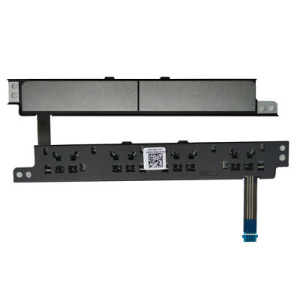 Dell Latitude 5400 MousePad Button Board – YPHVV / TY8H6KSh 1,800.00
KSh 2,000.00 -
Product on sale
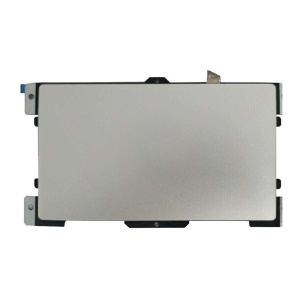 HP ProBook 430 G9 Mouse Touchpad / Trackpad AssemblyKSh 3,800.00
KSh 4,000.00 -
Product on sale
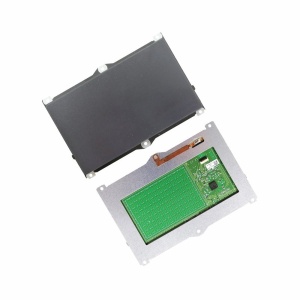 HP ProBook 430 G7 Mouse Touchpad / Trackpad AssemblyKSh 3,500.00
KSh 4,000.00 -
Product on saleHP ProBook 430 G8 Mouse Touchpad / Trackpad AssemblyKSh 3,000.00
KSh 3,500.00 -
Product on sale
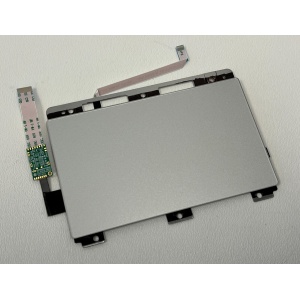 HP EliteBook Folio 1040 G4 Mouse Touchpad / Trackpad AssemblyKSh 2,500.00
KSh 3,500.00 -
Product on sale
 LENOVO THINKPAD T450 TOUCHPAD REPLACEMENT IN NAIROBIKSh 1,500.00
KSh 2,300.00 -
Product on sale
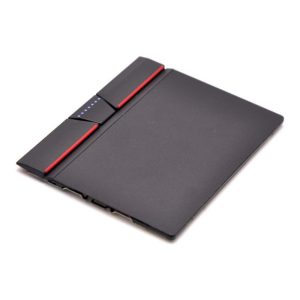 LENOVO THINKPAD T460 TOUCHPAD REPLACEMENT IN NAIROBIKSh 1,500.00
KSh 2,500.00 -
Product on sale
 HP Pavilion 15-CX 15-CX0020CA / 15-CX0058WM TPN-C133 Touchpad / Trackpad ReplacementKSh 2,000.00
KSh 2,500.00 -
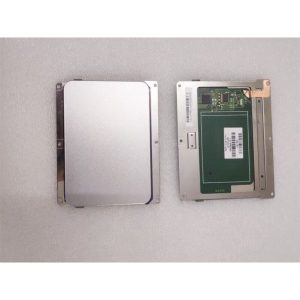 Original HP EliteBook Folio 1040 G3 LAPTOP TOUCHPAD MODULE 844394-001 TESTED in Luztech SolutionsKSh 2,500.00
 -
Product on sale
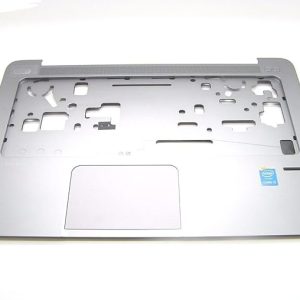 Original HP Elitebook Folio 1040 G1 Touchpad Palmrest Replacement and fixing in NairobiKSh 1,500.00
KSh 2,000.00 -
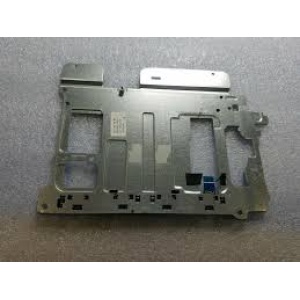 HP ProBook 650 G3 Touchpad replacement in Nairobi CBD at Luztech SolutionsKSh 1,500.00
 -
Product on sale
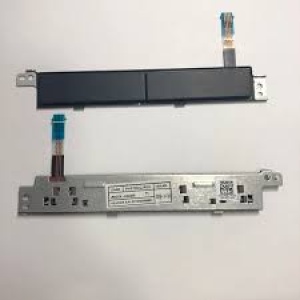 DELL Latitude 5280 E5280 CDM60 original laptop touchpad left and right buttons touch buttons CN-A169B1 A169B1 replacement in Nairobi CBD at Luztech SolutionsKSh 2,000.00
KSh 2,500.00
