
Introduction to SSD Replacement and Installation
Is your computer slow to start, taking too long to open applications, or struggling to load files? Replacing an old or failing hard disk drive (HDD) with a Solid State Drive (SSD) can significantly improve storage performance on compatible computers.
At Luztech Computer Solutions, we assist customers looking for SSD replacement, storage upgrades, installation, and related troubleshooting in Nairobi CBD. We cater to enquiries for laptops, desktop computers, workstations, selected servers, and supported Apple MacBook Air and MacBook Pro models.
Whether you need a basic SSD for school and office work, faster storage for professional applications, or a higher-capacity drive for large files, we can help you identify a suitable option for your device and budget.
We accept enquiries for SSDs from brands such as Samsung, Lexar, SanDisk, TeamGroup, Dahua, Twinmos, and other available manufacturers, subject to current stock.
For SSD replacement and installation enquiries, call or WhatsApp Luztech Computer Solutions on 0702 981 367.
Browse our Laptop and Computer SSD Products.
Benefits of Replacing an HDD with an SSD
An SSD stores data using flash memory instead of the moving mechanical components found in traditional hard disk drives.
Upgrading to an SSD can provide several benefits:
-
Faster startup: The operating system may load much more quickly.
-
Faster application loading: Programs can open and access data more efficiently.
-
Improved responsiveness: Everyday computing can feel smoother when storage speed is the bottleneck.
-
Quieter operation: SSDs have no spinning platters or moving read/write heads.
-
Better resistance to everyday movement: SSDs have no mechanical drive components, although they still require careful handling.
-
Improved productivity: Less time waiting for applications and files to load.
An SSD upgrade does not automatically fix every slow-computer problem. Insufficient RAM, overheating, malware, processor limitations, and software faults can also affect performance.
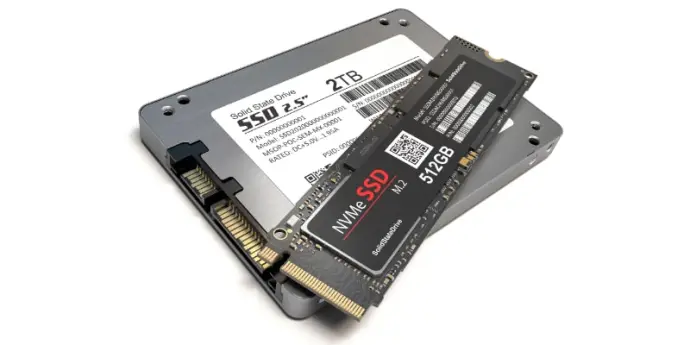
Types of SSDs for Laptops, Desktops, Servers and Workstations
Choosing the correct SSD involves checking the drive’s form factor, interface, supported protocol, physical dimensions, and device compatibility.
1. 2.5-Inch SATA SSD
A 2.5-inch SATA SSD is commonly used to replace a compatible 2.5-inch hard disk drive.
Features and benefits:
-
Fits many laptops and desktops designed for 2.5-inch SATA storage.
-
Available in different capacities.
-
Suitable for everyday computing and general-purpose upgrades.
-
Typically delivers sequential speeds of approximately 500–560 MB/s, depending on the model.
Best for: Compatible laptops, desktop computers, and older systems using SATA storage.
2. M.2 SATA SSD
An M.2 SATA SSD uses the compact M.2 form factor but communicates through the SATA interface.
Although it may look similar to an M.2 NVMe drive, the two use different storage interfaces and are not universally interchangeable.
Best for: Computers with an M.2 slot specifically supporting SATA SSDs.
3. M.2 NVMe SSD
An M.2 NVMe SSD uses the NVMe protocol over a supported PCIe connection. Depending on the drive generation and system, these drives can offer substantially higher transfer speeds than SATA SSDs.
Benefits include:
-
High read and write performance.
-
Compact dimensions.
-
Suitability for demanding applications and large files.
-
Availability in multiple capacities and PCIe generations.
Best for: Compatible modern laptops, desktops, gaming computers, workstations, and selected servers.
The presence of an M.2 slot does not guarantee NVMe compatibility. Confirm the supported interface, drive length, and PCIe generation before purchasing.
4. mSATA SSD
mSATA SSDs are used in certain older laptops and specialised devices. They use a different connector from M.2 storage and are less common in newer computers.
Best for: Older systems specifically designed for mSATA drives.
5. Enterprise and Server SSDs
Servers and professional workstations may use SATA, SAS, or NVMe drives, depending on their storage architecture.
Enterprise SSD selection may depend on workload, endurance ratings, drive carriers, RAID controllers, firmware, and compatibility with the server’s backplane.
Before purchasing a server SSD, confirm the exact server model and supported storage configuration.
Choosing the Right SSD Capacity
The appropriate capacity depends on the operating system, applications, files, and future storage requirements.
-
128GB SSD: Suitable for basic computing with limited local storage needs, although it may become restrictive for modern applications.
-
256GB SSD: A practical option for many everyday users, students, and office workers.
-
512GB SSD: Provides additional space for applications, documents, media, and projects.
-
1TB SSD: Suitable for larger applications, games, professional projects, and extensive file collections.
-
2TB SSD or larger: Useful for demanding workloads, large media libraries, virtual machines, and supported professional systems.
Check your computer’s supported capacity and interface before purchasing a drive. Also consider how much free space you will need after installing the operating system and applications.
SSD Speeds: SATA, NVMe and mSATA
SSD performance depends on the interface, drive model, controller, computer, and workload.
| SSD type | Typical sequential speeds | Common use |
|---|---|---|
| 2.5-inch SATA SSD | Approximately 500–560 MB/s | General laptop and desktop upgrades |
| M.2 SATA SSD | Similar to SATA limits | Compatible compact systems |
| M.2 NVMe SSD | Around 1,000 MB/s to several thousand MB/s or more | Modern systems and demanding workloads |
| mSATA SSD | Generally limited by its SATA interface | Compatible older devices |
These figures are general examples rather than guaranteed results. Actual speeds depend on the drive and the computer’s capabilities.
SSD Replacement for Different Computer Brands
Luztech Computer Solutions accepts enquiries for compatible SSD upgrades and replacements for many computer brands.
HP SSD Replacement
Selected HP Pavilion, ProBook, EliteBook, Envy, OMEN, desktop, and workstation models may support SATA or NVMe SSDs, depending on their configuration.
Dell SSD Replacement
Selected Dell Inspiron, Latitude, Vostro, XPS, OptiPlex, Precision, and other models support different storage formats and interfaces.
Lenovo SSD Replacement
Selected ThinkPad, ThinkBook, IdeaPad, ThinkCentre, and workstation systems may support SSD installation or replacement.
Acer and ASUS SSD Replacement
Selected Acer Aspire, Swift, Nitro, Predator, ASUS VivoBook, ZenBook, TUF Gaming, and ROG systems may support different SSD configurations.
Apple MacBook Air and MacBook Pro SSD Services
MacBook storage varies by generation. Some older models have replaceable storage, while many newer models use storage integrated into the logic board.
Confirm the exact MacBook model before planning an upgrade. Standard M.2 NVMe drives do not fit every MacBook, and some models do not support conventional internal SSD replacement.
Server and Workstation SSD Upgrades
Professional systems may require specific SATA, SAS, or NVMe drives, supported capacities, enterprise features, or RAID configurations.
Contact us with the computer or server model so the appropriate storage option can be identified.
SSD Installation, Replacement and Data Migration
Replacing a drive requires more than fitting the new hardware. You may also need to migrate your files, clone the existing drive, reinstall the operating system, or configure a new storage device.
Our SSD service enquiries may include:
-
Initial assessment: Identify the computer model and existing storage configuration.
-
Compatibility checks: Confirm the correct interface, form factor, dimensions, and capacity.
-
SSD selection: Choose a suitable drive based on workload, budget, and availability.
-
Installation: Fit the compatible SSD into the supported computer.
-
Data migration: Where technically feasible, discuss cloning the existing drive or transferring files.
-
Operating system setup: Ask about fresh operating system installation where required.
-
Testing: Check that the SSD is detected and operating correctly.
Data migration depends on the condition of the existing drive, available storage capacity, encryption, and operating system. If your old drive is failing, some data may be difficult or impossible to recover, so back up important files before replacement whenever possible.
SSD Replacement Prices in Nairobi
SSD prices depend on capacity, interface, brand, performance, warranty, and availability. Enterprise and specialised workstation drives may cost more than standard consumer SSDs.
For an accurate quotation, provide:
-
Your computer brand and exact model.
-
The required SSD type, if known.
-
Whether you need installation or data migration.
-
Whether your current drive is working, slow, or failing.
Contact Luztech Computer Solutions for current product prices, installation charges where applicable, and availability.
Why Choose Luztech Computer Solutions?
Storage compatibility assistance: Get help identifying an SSD that matches your computer’s specifications.
Options for different workloads: Enquire about SSDs for everyday computing, gaming, business applications, workstations, and selected servers.
Installation support: Ask about fitting, testing, and related storage services.
Data migration enquiries: Discuss options for transferring files or cloning a supported existing drive.
Computer troubleshooting: If an SSD upgrade does not resolve the problem, further diagnosis may help identify other performance issues.
Convenient Nairobi CBD location: Visit us for enquiries about SSDs, computer spare parts, upgrades, and repairs.
SSD Delivery and Installation Services
Contact Luztech Computer Solutions to confirm current SSD stock, delivery arrangements, installation availability, and applicable warranty terms.
Customers outside Nairobi can enquire about available delivery arrangements before placing an order.
Precautions Before SSD Replacement
1. Back Up Important Files
Save important documents, photos, and other data to a separate secure location before replacing the drive.
2. Verify Compatibility
Check the computer model, interface, physical dimensions, supported capacity, and manufacturer requirements. SATA, NVMe, and mSATA drives are not universally interchangeable.
3. Check Encryption and Recovery Information
If your system uses BitLocker or other device encryption, ensure you have the required recovery information before changing storage or system configurations.
4. Choose Data Migration or a Fresh Installation
Cloning may preserve the existing operating system and applications if the source drive is healthy and the process is supported. A fresh installation may be appropriate in other situations.
5. Use Proper Installation Procedures
Internal storage should be handled with suitable anti-static precautions. If you are unfamiliar with computer hardware, consider professional installation.
6. Check Warranty Terms
Confirm the SSD manufacturer’s warranty and any applicable installation or service warranty before purchasing.
Where to Buy SSDs and Arrange Installation in Nairobi
For SSD replacement, storage upgrades, and compatible spare parts, contact Luztech Computer Solutions.
Business: Luztech Computer Solutions
Location: Rehimtulla Trust Building, 2nd Floor, Shop 27B, Moi Avenue, Nairobi CBD, opposite Bihi Tower.
Call or WhatsApp: 0702 981 367
Browse our SSD and Internal Storage Products.
Frequently Asked Questions
Can replacing an HDD with an SSD make my computer faster?
Yes, it can improve startup times, application loading, and file access when the original hard drive is the main performance bottleneck.
Can every laptop use an NVMe SSD?
No. The laptop must support NVMe storage and the drive’s physical dimensions and interface. Some systems support SATA SSDs only, while others have soldered storage.
Can I upgrade the SSD in a MacBook Air or MacBook Pro?
It depends on the exact model and generation. Some older models have replaceable storage, while many newer models have storage integrated into the logic board.
Can my existing files be transferred to the new SSD?
Often, yes. File transfer or drive cloning may be possible if the source drive is readable and the destination drive has sufficient capacity. A failing drive may require special data recovery.
Do you offer SSD installation in Nairobi?
Contact Luztech Computer Solutions to confirm installation availability, current charges, compatibility checks, and data migration options.
Improve your computer’s storage performance with the right SSD. Contact Luztech Computer Solutions on 0702 981 367 for SSD replacement and installation enquiries in Nairobi.
